Why this guide matters
IPTV is a remarkably reliable technology, but like any system that depends on internet connectivity, hardware, and software working together, occasional problems are inevitable. When a channel freezes, the player app crashes, or the EPG fails to load, knowing how to diagnose and fix the issue quickly is the difference between a frustrating evening and a seamless streaming experience.
This guide covers every common IPTV problem — from buffering and freezing to channel loading failures, audio sync issues, and login errors. Each section follows the same structure: what the problem looks like, what causes it, and exactly how to fix it. The troubleshooting steps are ordered from simplest to most advanced, so you can start with the quick fixes and work through to the technical solutions only if needed.
For device-specific guides, see the Smart TV guide, Fire Stick guide, and Android TV box guide. If you need a VPN to bypass ISP throttling, the VPN guide has setup instructions.
Before you start troubleshooting
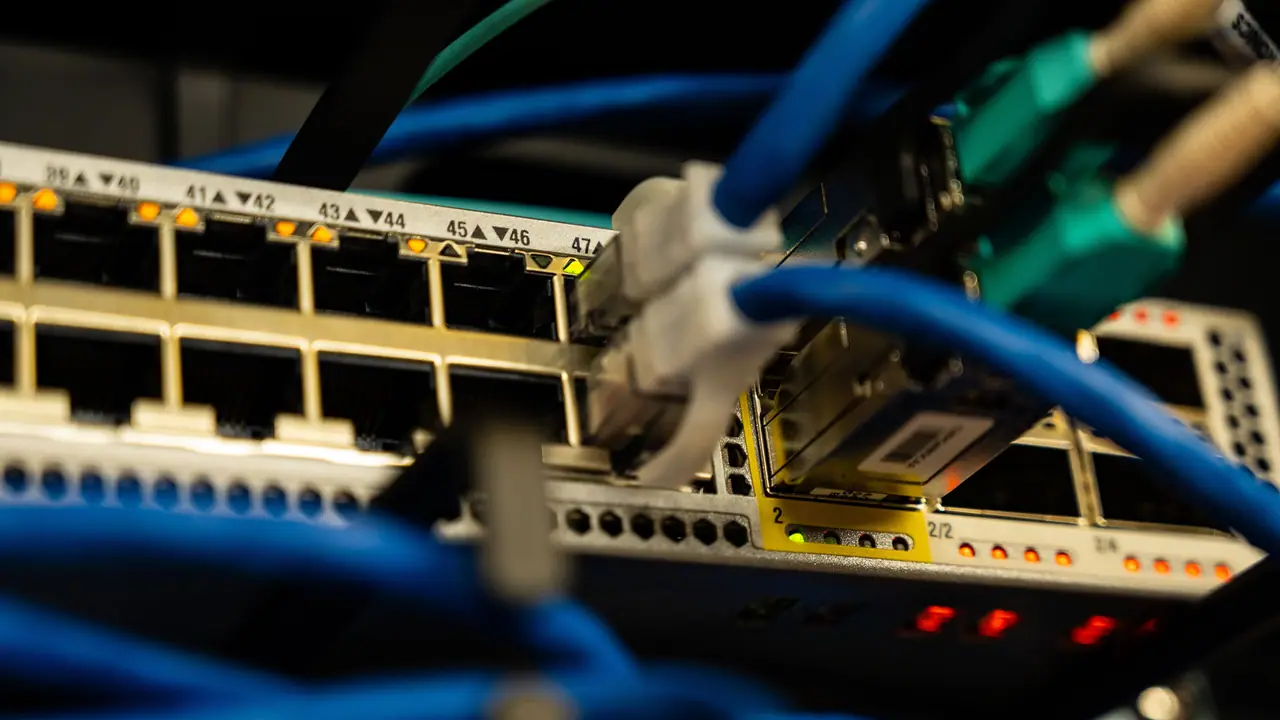
Before diving into specific fixes, run through this quick checklist. Many IPTV problems are caused by simple issues that are easy to overlook. Checking these basics first saves you time and prevents unnecessary configuration changes. For official broadband speed recommendations, see the FCC Broadband Speed Guide.
Check your internet connection. Open a website or run a streaming speed test on the same device or network. If the internet is down or very slow, that is likely the cause. Restart your router by unplugging it for 30 seconds, then plugging it back in. This fixes a surprising number of connectivity issues.
Restart your streaming device. A full restart (not sleep mode) clears temporary cached data that can cause playback issues. For TV-connected devices, unplug the power cable for 30 seconds. For phones or tablets, perform a full power cycle.
Check if the problem is device-specific. Try the same IPTV channel or VOD title on a different device on the same network. If it works on one device but not another, the issue is with the problematic device, not the IPTV service. If it fails on both, the issue may be with your network or the IPTV provider's server.
Verify your subscription is active. Check your account dashboard or contact your provider to confirm your subscription has not expired. An expired subscription is the most common cause of channels suddenly not loading. For device-specific guides, see the Smart TV guide, Fire Stick guide, and Android TV box guide.
Check for service announcements. Visit your provider's website or Telegram channel for any service status updates. Planned maintenance or server issues affect all users and are usually resolved within a few hours.
- Test your internet connection with a speed test
- Restart your router (unplug for 30 seconds)
- Restart your streaming device completely
- Test the same channel on a different device
- Verify your subscription is still active
- Check for provider maintenance announcements
Buffering and freezing: causes and fixes

Buffering is the most common IPTV complaint. The video pauses, a spinning circle appears, and after a few seconds the stream resumes — or it keeps pausing every few minutes. Freezing is similar but the video stops entirely and may not resume without manual intervention. Both issues have several possible causes, and the fix depends on the root cause.
Network congestion: If buffering happens at predictable times (typically 6 PM to 11 PM), your internet connection may be congested. Test by running a speed test during the problematic hours. If speeds drop significantly, the solution is to prioritize your streaming device's traffic or use a wired connection. Some users find that a VPN helps because it prevents ISPs from throttling streaming traffic during peak hours.
Wi-Fi interference: Wireless connections are susceptible to interference from neighboring networks, walls, and household appliances. Move your streaming device closer to the router, switch to 5 GHz Wi-Fi instead of 2.4 GHz, or ideally connect via Ethernet. Ethernet eliminates wireless interference entirely and is the single most effective fix for buffering.
Device performance: Older or underpowered devices struggle with large channel lists and high-bitrate streams. Close background apps to free up processing power and RAM. On Firestick, go to Settings > Applications > Manage Installed Applications and force-stop unused apps. On Android TV, use the built-in memory cleaner or restart the device.
Player app settings: Most IPTV player apps have video decoder settings that affect buffering. Try switching between hardware decoding and software decoding in the player settings. Some devices work better with one over the other. Also try reducing the buffer size setting — a smaller buffer can actually reduce stuttering on some devices.
Server-side issues: If all channels buffer simultaneously, the problem is likely with the IPTV provider's server. Try switching to a different channel to confirm. If multiple channels have the same issue, contact your provider's support. There is usually nothing you can do except wait for the server to recover.
For a comprehensive buffering troubleshooting workflow, see the buffering checklist. For advanced buffering fixes including DNS optimization and VPN configuration, see the complete buffering analysis guide.
- Use Ethernet instead of Wi-Fi for the most stable connection
- Switch between hardware and software decoding in player settings
- Close background apps to free up device resources
- Test at different times to identify network congestion patterns
- Use a VPN if your ISP throttles streaming traffic
- Try switching to a different server in your player app settings
Channels not loading or appearing in the list

When channels fail to load, you may see a black screen, an error message, or the channel simply does not appear in the playlist. This problem has several distinct causes, each with a specific fix.
Channel list did not download properly: If some or all channels are missing from your playlist, the initial channel list download may have failed or been interrupted. In your player app, force a playlist refresh or reload. In TiviMate, go to Settings > Playlists > select your playlist > Update. In IPTV Smarters Pro, swipe down on the home screen to refresh.
Channel is offline or removed: Some channels go offline temporarily due to source issues, or the provider may have removed them from the lineup. Check if the same channel loads on a different device. If it fails everywhere, the channel is likely offline and will return when the provider restores the source. Contact support for an estimated restoration time.
EPG data is missing or incorrect: If channels appear in the list but show no program information, the EPG may not have downloaded. Force an EPG update in your player settings. In TiviMate, go to Settings > EPG > Update EPG. If the EPG data is incorrect, your playlist may be mapped to the wrong EPG source — check the playlist settings and ensure the correct EPG URL is configured.
Parental control or content filtering: Some player apps and devices have content filtering that hides certain channels. Check the parental control settings in your player app and ensure no content restrictions are enabled. Also check if your IPTV provider offers adult content filtering in your account settings.
Playlist URL or credentials have changed: If your provider changed their server or your login credentials, the old playlist will not load. Check your email or provider dashboard for any announcements about server changes. If your subscription was renewed, the provider may have issued new credentials.
M3U URL issues: If you are using an M3U URL instead of Xtream Codes API, ensure the URL is entered exactly as provided, including the full path and any query parameters. A single typo in the URL prevents the playlist from loading. Copy and paste the URL rather than typing it manually.
- Force a playlist refresh or reload in your player app
- Test the same channel on a different device
- Update EPG data if program information is missing
- Check parental control settings for content filtering
- Verify your playlist URL or credentials have not changed
- Contact your provider if channels are permanently missing
Ready to start streaming?
Audio and video out of sync
Audio desynchronization — where the audio either lags behind or precedes the video — is a frustrating problem that makes watching anything impossible. Fortunately, it is usually fixable with player app settings adjustments.
Change the audio track: Some channels broadcast multiple audio tracks in different languages or formats. Press the audio button on your remote (or find the audio track selector in the player app) and try switching to a different track. Sometimes one track is out of sync while others are perfectly aligned.
Adjust audio offset: Most premium IPTV player apps allow you to manually adjust the audio delay. In TiviMate, while watching a channel, press the OK button on your remote, select Settings (gear icon), then find Audio Offset. Adjust the value in milliseconds to sync the audio. A positive value delays audio (for audio that arrives before video), while a negative value advances audio (for audio that lags behind). Start with small adjustments of 50-100 ms.
Switch decoder: Hardware and software decoders handle audio differently. If audio sync is a persistent issue on a specific channel, try switching the decoder in your player app's settings. In IPTV Smarters Pro, go to Settings > Player Settings and toggle between Hardware Decoder and Software Decoder.
Restart the stream: Sometimes audio sync issues are caused by a temporary glitch in the stream. Stop the current channel, wait 10 seconds, and start it again. If the issue was a transient glitch, a fresh connection to the stream usually fixes it.
Check your audio system: If you are using an external soundbar or AV receiver, the audio processing in that device can introduce delay. Try playing the same channel through the TV's built-in speakers to isolate whether the audio system is causing the delay. Most soundbars and AV receivers have audio sync adjustment settings in their own menus.
- Try switching to a different audio track on the channel
- Adjust audio offset in your player app (50-100 ms increments)
- Toggle between hardware and software decoder
- Restart the stream to clear temporary glitches
- Test with TV speakers to isolate soundbar or AV receiver delay
- Use your soundbar's audio delay adjustment if needed
Login and connection issues
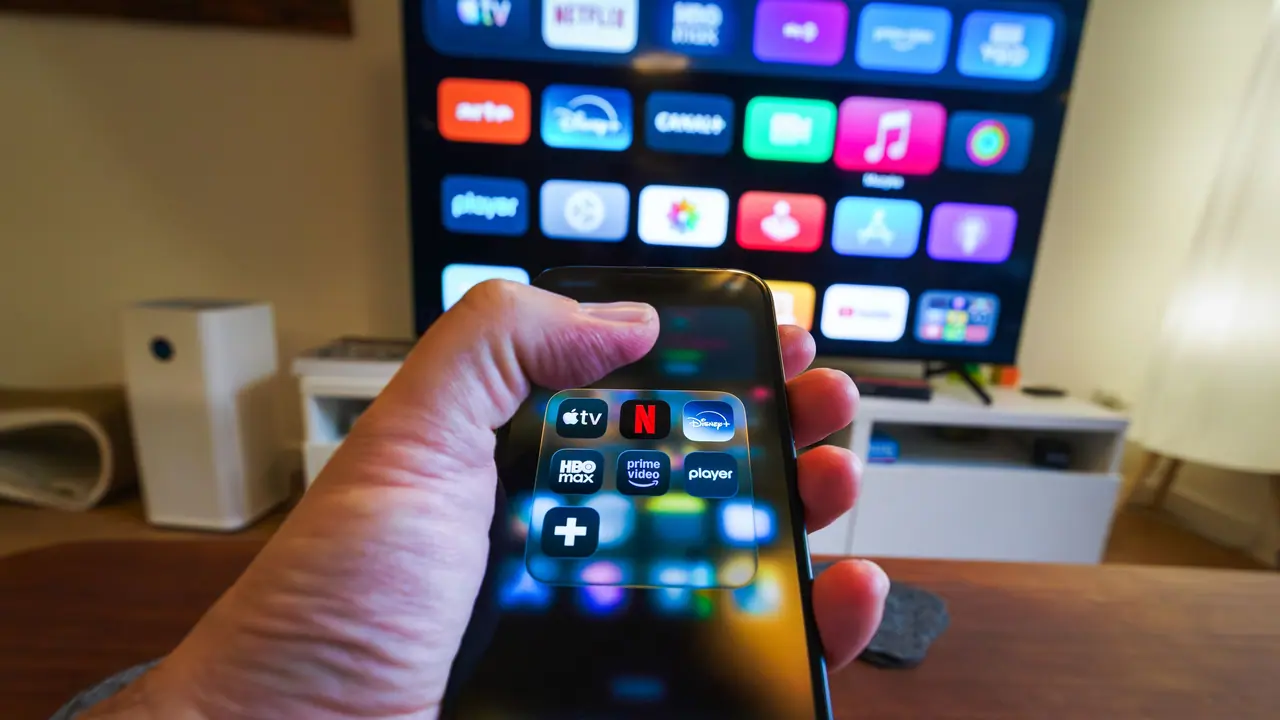
Problems logging into your IPTV player app or maintaining a connection to the provider's server can prevent you from accessing any content at all. These issues are usually straightforward to diagnose.
Incorrect credentials: Double-check your username, password, and server URL. Credentials are case-sensitive, so check for uppercase letters, special characters, and trailing spaces. If you copied the credentials from an email, ensure no extra spaces were included. If you are unsure, request your provider to resend or reset your credentials.
Server URL is incorrect: The server URL must match exactly what your provider specified. Common formats include http://yourprovider.com:8080 for Xtream API or http://yourprovider.com:80 for portal login. Check whether the URL uses http:// or https://, and confirm the port number is correct.
Account expired or suspended: If your subscription has expired, the server will reject login attempts. Check your account dashboard or contact your provider to confirm your subscription status. Some providers temporarily suspend accounts for terms of service violations — contact support if you believe this happened in error.
Connection limit reached: If your subscription allows a limited number of simultaneous connections, attempting to log in from an additional device may fail. Disconnect from one device before connecting on another. Some player apps display an error message indicating the connection limit has been reached.
Server maintenance or outage: If you cannot connect at all and your credentials are correct, the provider's server may be down for maintenance. Check your provider's status page, Telegram channel, or social media for announcements. Server outages usually resolve within a few hours.
Firewall or router blocking: Some routers or ISP configurations block IPTV server ports. If you can connect from a mobile network (disabling Wi-Fi) but not from your home network, your router or ISP may be blocking the connection. Try temporarily disabling your router's firewall to test. If that fixes the issue, add an exception for your IPTV provider's server IP address and port.
- Verify credentials are correct and case-sensitive
- Check that the server URL and port are exactly right
- Confirm your subscription has not expired
- Disconnect from other devices to free connection slots
- Check provider status pages for server outages
- Test on mobile data to rule out router or ISP blocking
Device-specific troubleshooting
Some IPTV problems are specific to particular devices. Here are the most common device-specific issues and their solutions.
Firestick / Fire TV: The most common issues on Firestick are storage running low (causing sluggish navigation and app crashes) and apps not updating. Check available storage at Settings > My Fire TV > About > Storage. If storage is below 500 MB, uninstall unused apps. For apps that will not install or update, go to Settings > My Fire TV > Developer Options and enable Apps from Unknown Sources if installing from outside the Amazon App Store. If the device becomes very slow, clear the cache of your IPTV app in Settings > Applications > Manage Installed Applications > select the app > Clear Cache.
Smart TV (Samsung, LG): Smart TVs have limited processing power compared to dedicated streaming devices. If your IPTV app is slow or crashes, try reducing the channel list size by hiding unwanted channel categories in the app settings. Smart TVs also benefit from periodic firmware updates — check Settings > Support > Software Update for the latest version. Some Smart TVs have aggressive power saving features that close background apps — disable any auto power saving or app sleeping features. For detailed Android TV setup and troubleshooting, see the Android TV box guide.
Android TV box: Android TV boxes usually offer excellent performance, but issues arise from outdated firmware or incompatible app versions. Ensure your Android TV box is running the latest firmware from the manufacturer. If the IPTV app crashes, try clearing the app cache or reinstalling it. Some Android TV boxes have compatibility issues with hardware decoding — switch to software decoding in the player app settings. For detailed guidance, see the Android TV box guide. For iPhone and iPad IPTV issues, see the iPhone and iPad IPTV guide.
iPhone / iPad: iOS devices rarely have hardware issues with IPTV, but network-related problems occur. If the IPTV app cannot connect while on Wi-Fi, try toggling Wi-Fi off and on, or switching to mobile data to test. Some iOS IPTV apps have background playback restrictions — ensure the app has background refresh enabled in Settings > General > Background App Refresh. For a full setup walkthrough, see the iPhone and iPad IPTV guide.
- Firestick: clear app cache and free up storage space
- Smart TV: hide unused channels and update firmware
- Android TV: update firmware and switch to software decoding
- iPhone/iPad: toggle Wi-Fi and enable background app refresh
- All devices: restart before attempting any other fix
- All devices: reinstall the IPTV player app as a last resort
Ready to start streaming?
When to contact IPTV support
Knowing when to troubleshoot yourself versus when to contact support saves time and frustration. Here is a guide to help you decide.
Contact support if: all channels are down simultaneously (server-side issue), you cannot log in with correct credentials, your subscription was charged but is not active, specific channels have been offline for more than 24 hours, or you need your credentials reset or playlist URL updated.
Troubleshoot yourself if: one specific channel is buffering (likely a source issue), the player app crashes on your device (try reinstalling), EPG data is missing (force an update), or picture quality is below expectations (check your internet speed and decoder settings).
When contacting support, provide these details for the fastest resolution: your account username or email, the device you are using (model and operating system version), the player app name and version, a description of the problem including when it started and whether it affects all channels or specific ones, and any error messages displayed on screen. For support contact information, visit the support and troubleshooting guide or the support page.
For contact information and response time expectations, see the support and troubleshooting guide or visit the support page.
Frequently asked questions
Quick answers to common troubleshooting questions. For more detailed guidance, refer to the relevant section above or visit the support guide.