Why this guide matters
Mobile IPTV on iPhone and iPad is often a companion experience rather than the main TV experience. This guide is designed for users who want qwevo tv on the go, in another room, or as a backup screen when the main TV is busy. For mobile viewers, it helps to compare with the live sports guide when the phone is used as a companion screen.
iOS always has extra app and network restrictions, so the setup path is different from a Smart TV or Android box. We explain App Store behavior, background permissions, battery mode impacts, and how to make mobile viewing reliable without draining your device. For buffering solutions, refer to the buffering checklist.
If you are using a phone or tablet as a second screen during sport events, travel, or a second TV, this article helps you configure the mobile IPTV experience so it feels useful rather than frustrating.
Mobile IPTV in 2026 is viable and practical, but requires understanding Apple's app restrictions and optimizing network access for reliable playback across Wi-Fi and cellular networks.
Prepare the device before login
Start by checking the iOS version and available storage. Open Settings > General > iPhone Storage or iPad Storage and free up space if necessary. A mobile app can feel slow or fail to download if the device is low on disk.
Turn off Low Power Mode for the initial setup. Low Power Mode can restrict background app refresh and networking, which may interfere with the IPTV player while it is building the playlist. You can turn it back on afterward if you need battery savings.
If you plan to use mobile data, verify that the app is allowed to use cellular data. Go to Settings > Cellular and confirm the player is enabled. That avoids a common issue where the app works on Wi-Fi but stops on mobile data because permissions were never granted.
- Free up storage before installing the IPTV app.
- Disable Low Power Mode during setup.
- Allow the app to use cellular data if needed.
- Keep the device charged during the first test.
App Store and permissions
On iOS, install the qwevo tv player or a supported IPTV client from the App Store. Do not install apps from outside the App Store, as iOS does not allow that without a developer profile. If the player is not available, check whether the provider offers an alternate browser or portal login.
Once installed, open Settings > Privacy > Local Network and make sure the app is allowed to access devices on your network. Without local network permission, the app may fail to discover the playlist or communicate with local devices. For Apple's official documentation on local network access, see Apple Support: Local Network permissions.
Also verify the app can send notifications if you want to receive updates about failures or activation reminders. This is especially useful for mobile IPTV when the device may move between networks.
Check the app's background refresh settings. If the app is blocked from refreshing in the background, it may take longer to reopen the stream after switching away from it. Allowing background refresh can improve mobile continuity.
Optimize mobile performance
Mobile performance depends on the signal and the device's background state. Close other apps before streaming and avoid using the phone for downloads or updates during the session. This keeps the system resources available for the IPTV player.
If you are on Wi-Fi, prefer a stable home network rather than a café or public hotspot during long viewing sessions. If you need to use mobile data, keep the stream quality at a moderate level and watch for data usage.
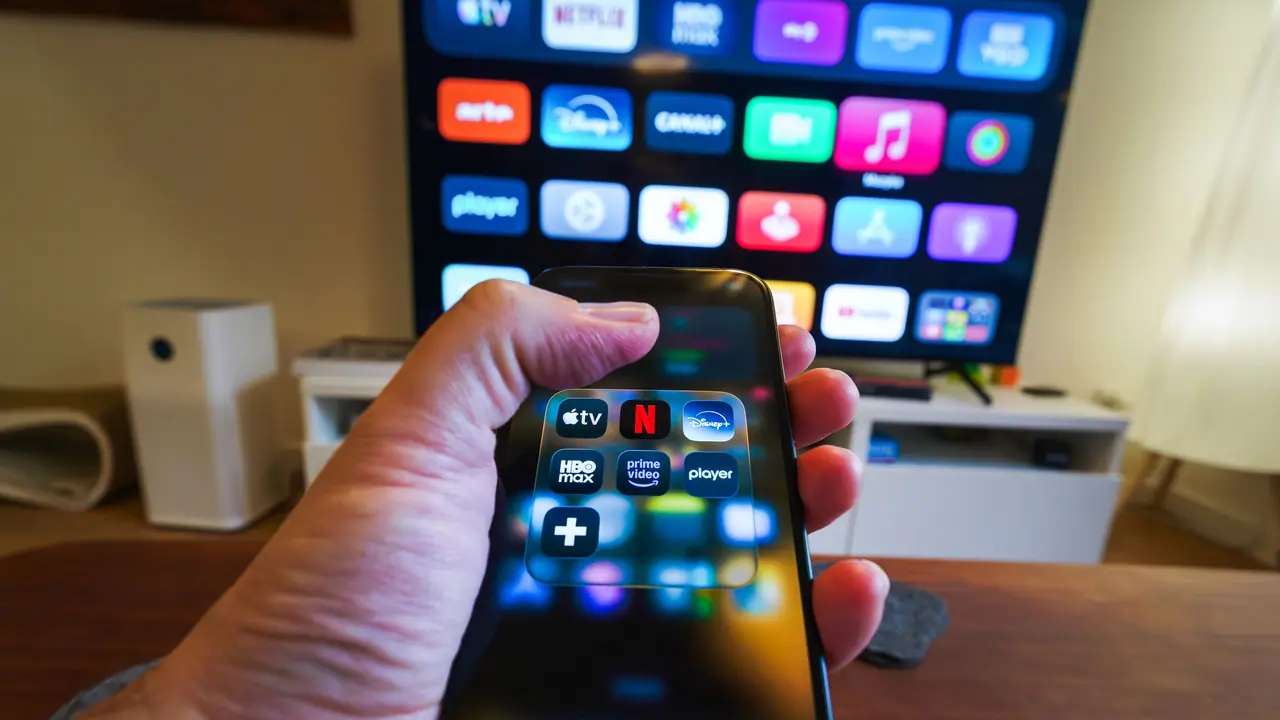
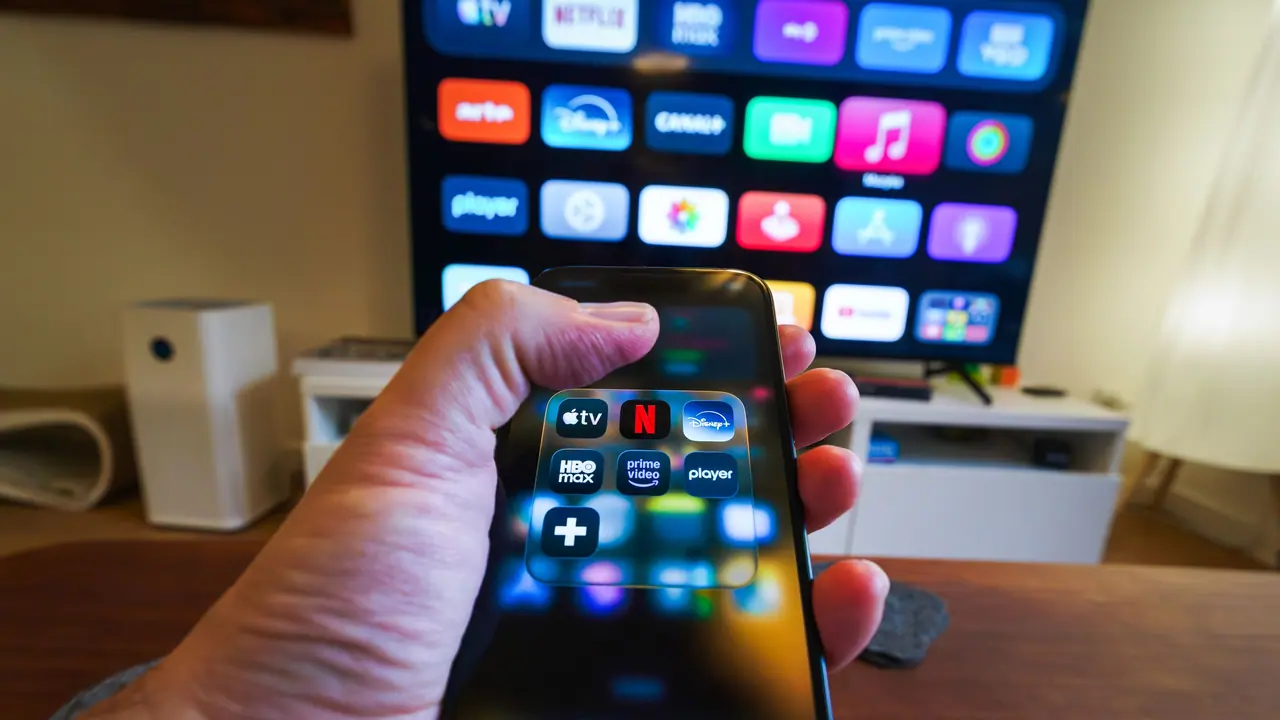
On iPad, landscape mode usually provides the best viewing experience. On iPhone, consider AirPlay if you want the phone to be a control device while the actual video plays on a larger screen. AirPlay can be a good fallback if the mobile app is not working perfectly on its own.
If you plan to use mobile data, check your carrier plan before an extended viewing session. Some mobile IPTV sessions can use several gigabytes per hour at higher quality settings, so moderate the resolution to fit your data allowance.
- Close background apps before streaming.
- Prefer private Wi-Fi for long sessions.
- Monitor data usage if using cellular service.
- Use AirPlay for a larger companion screen.
Ready to start streaming?
Battery and screen management
Mobile IPTV can be battery intensive, especially if you keep the screen bright for long sessions. Use a moderate brightness level and keep the device plugged in if possible. That helps avoid interruptions from low battery warnings.
Turn off unnecessary notifications during the stream. A sudden notification can interrupt full-screen playback and make the experience feel less polished.
If you use AirPlay, make sure the phone or tablet remains connected to the same Wi-Fi network as the receiving device. A disconnected AirPlay session can cause a frustrating break in the middle of an event.
For iPads, a stand can make the experience more comfortable and stable than holding the device. That small comfort upgrade makes mobile IPTV feel more like a reliable secondary screen.
Keep Auto-Lock set to a reasonable interval. If the screen turns off during a stream, the device may need re-authentication, breaking the viewing experience.
Network reliability for mobile IPTV
Mobile IPTV depends heavily on consistent network connectivity. If you are switching between Wi-Fi and cellular, the app may need a few seconds to reconnect. Switching during an event can cause brief playback stalls.
For critical viewing (sports, live events), stay on a single stable network connection if possible. If you move from room to room, confirm that the new Wi-Fi network is strong before switching.
Keep the app running in the foreground during important streams. If you minimize it or let the phone sleep, the system may prioritize other apps and cause the stream to buffer or drop.
If you experience buffering on mobile data, try lowering the stream quality in the app settings. Most IPTV services allow resolution or bitrate adjustment for mobile viewing.
Test both Wi-Fi and cellular connectivity before an important viewing session. That helps you understand the best network path for your device and location.
AirPlay and mobile companion setup
AirPlay can turn your phone or tablet into a companion screen or a second TV source. If you plan to use it, test the connection before the event so you know the device stays linked and the audio remains in sync.
Keep the mobile device and the AirPlay receiver on the same Wi-Fi network. If either device switches networks automatically, the stream can drop unexpectedly. A consistent network path is essential.
If you rely on the mobile device while traveling, save the app login and network permissions before you leave. That reduces setup time and makes the companion experience more reliable on the road.
Use a simple home screen shortcut or widget for the IPTV app. That reduces friction and makes the mobile experience feel more like a practical extension of the main setup.
If your iPad is the backup screen, consider using split-screen mode for chat or secondary apps while the stream plays. That can make the device feel more productive without interrupting the main viewing.
If the mobile app will be shared, keep the account credentials and support path documented. That allows another user to reconnect quickly if you are not available.
Test AirPlay connectivity to different receivers (Apple TV, smart speaker, etc.). Some devices may have different latency or video quality characteristics, so knowing which works best for your setup is valuable.
Ready to start streaming?
When to use support
Contact support when the mobile app does not load or when playback stalls after the app has downloaded the playlist. Include the iOS version, app name, and network type (Wi-Fi or cellular). For detailed help with mobile-specific issues, read the support and troubleshooting guide.
If the app is blocked from using local network or cellular data, support can guide you through the permission settings. That is a common mobile-specific issue that is easy to fix once identified.
If the stream works on Wi-Fi but not on mobile data, mention the carrier and whether other apps can use data normally. Support can then focus on the network path rather than the app itself. If you are choosing a plan for mobile use, the provider checklist can help match the service to your device needs.
Final checklist
Before you finish, confirm these mobile items: app installed, permissions granted, storage available, network stable, and one stream tested successfully. That makes iPhone and iPad IPTV feel reliable in daily use.
If you plan to use mobile as a companion screen, test the handoff from mobile to TV or AirPlay, and keep a small note on the device for the next viewing session.
Save your preferred streams or channels in the app favorites if that option is available. That speeds up future viewing sessions on mobile.
- Install from the App Store only.
- Allow required network permissions.
- Disable Low Power Mode during setup.
- Test one live stream on Wi-Fi first.
- Keep the device charged for long sessions.
- Create home screen shortcuts for quick app access.
- Document troubleshooting steps for future reference.
Ready to start streaming?