Why this guide matters
Watching live sports on IPTV is different from watching on demand. The stakes are higher because the match starts at a specific time, and buffering or slow channel changes are more noticeable. This guide prepares your qwevo tv setup for live events so you can focus on the game rather than the technology. For the fastest event prep, use the buffering checklist before game day. If you want a mobile backup screen during a match, also read the iPhone and iPad IPTV guide.
Sports viewers need a quick pre-game checklist, a backup screen option, and a stable network plan. We cover those points with real examples from football, boxing, and motorsport viewing so you can apply the same approach to your next match night.
Whether you are using a Smart TV, a Fire Stick, or a mobile companion screen, this article helps you make the sports viewing path predictable and consistent. That is the core difference between a good IPTV sports session and one that feels risky.
Game day preparation
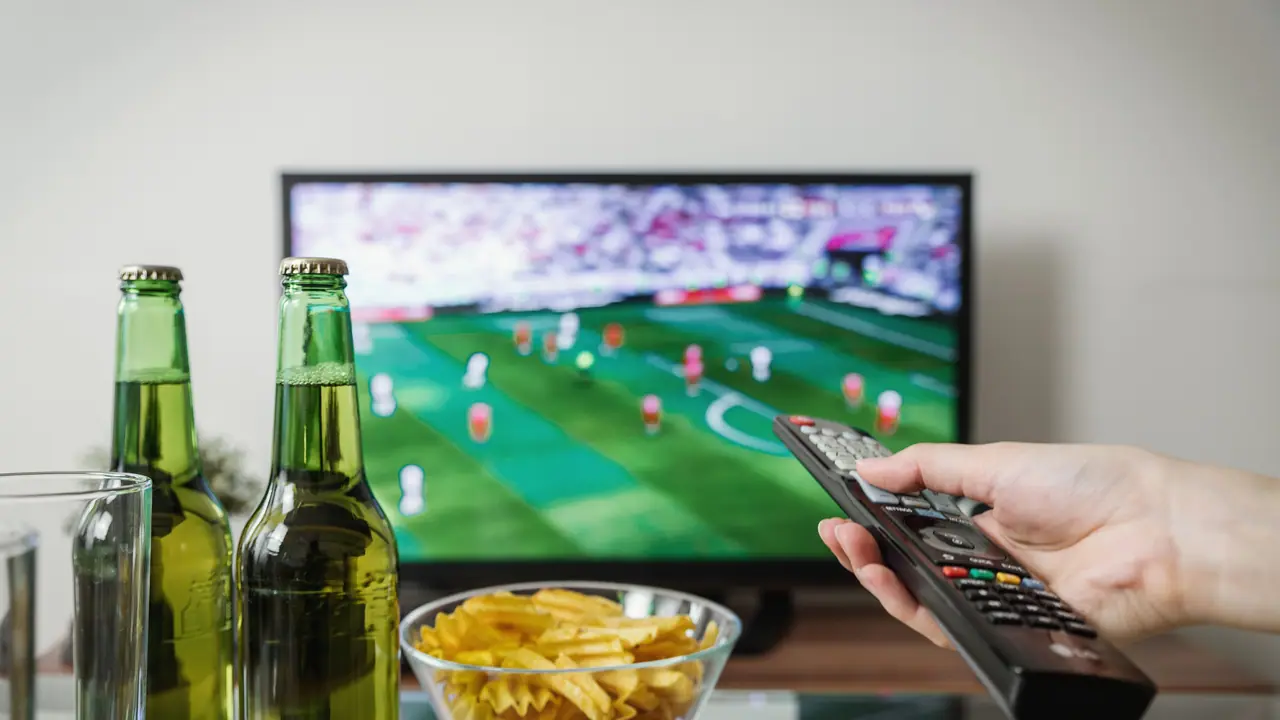
Open qwevo tv at least fifteen minutes before kickoff. Test the sports category, confirm the stream loads, and keep the TV on that channel while you wait. If the app is still buffering five minutes before the event, you have time to reboot the device or switch to an alternate input. For compact device setup, use the Fire Stick setup guide.
Check that your remote is ready and that volume, captions, and language settings are set before the event starts. Nothing is more frustrating than missing the first minutes of a match because you were still hunting for the settings menu.
If the event is on a different time zone or a special channel, bookmark the correct category in advance. Sports streams often appear in a dedicated section, and the wrong menu choice can send you to a generic live channel instead of the match you want.
Test the stream source ahead of time if possible. Some sports events have dedicated feeds with separate commentary or camera angles. Confirm you are watching the main event feed and not a secondary preview or highlight channel.
- Open the sports category 15 minutes before the event.
- Lock in the correct language and subtitle options.
- Keep the remote at hand for quick channel shifts.
- Use a secondary screen for backup if needed.
Live event network setup
For live sports, prefer a wired connection if the main screen is close to the router. If not, place the router or a mesh satellite closer to the TV. Premium sports viewing depends on a stable connection more than it depends on the highest possible speed. If your sports device is a TV, compare this with the Smart TV setup guide for the same reliability tips.
If you are using Wi-Fi, use the 5 GHz band and avoid other large downloads during the event. A single background download can introduce enough jitter to make a live football or boxing stream freeze at a critical moment.
If you have a second device, keep it on the same network and test it quickly. If both devices show buffering, the network is the likely issue. If only one device has trouble, that device needs a targeted check.
Backup options for sports viewing
A simple backup option is to have a mobile phone or tablet ready with qwevo tv signed in. If the main TV buffers or loses signal, you can transfer the viewing to a secondary screen without missing the rest of the game.
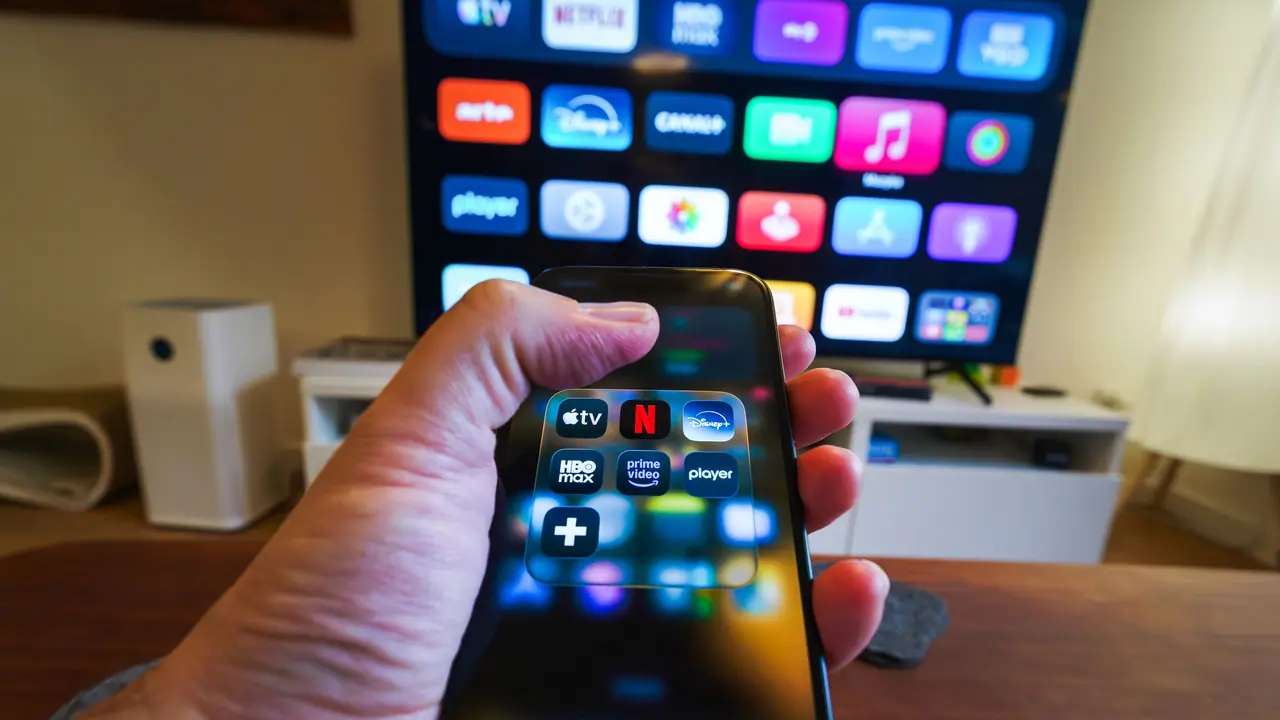
Another backup is a second app if your provider supports it. Some IPTV services allow a different player on the same account, which can be useful if one player struggles with a specific sports feed.
If you are watching a big event, keep the game on a low-latency stream if possible. Some providers label high-definition versions separately from standard live feeds. Choose the one with the fastest load time rather than only the highest resolution.
Ready to start streaming?
Audio and commentary setup
Good audio settings are essential for sports. If the stream offers multiple commentary tracks or language options, choose the one that matches the game and your preference before the event begins. Switching audio mid-game can be disruptive.
If you are using a soundbar or external speakers, test the audio path while the stream is not critical. Make sure the volume is balanced and the commentary is clear. Sports events can feel very different when the sound is delayed or muffled.
Consider whether you want the ball-by-ball commentary channel or a quieter stadium sound. Some IPTV providers label secondary audio channels separately. If your provider supports these options, pick the most comfortable one for the audience and lock it in early.
If you stream to a mobile device as a backup, lower the volume or use headphones to avoid disturbing others. A backup screen should be convenient without competing with the main viewing experience.
Group viewing coordination
For group sports viewing, decide in advance who controls the stream and who controls the sound. That prevents last-minute toggling of inputs or volume during a critical moment.
Set a quick rule for remote handoff. For example, the first person to open the app keeps the stream until halftime or commercial break. That simple rule removes confusion and keeps the event on track.
If guests arrive late, have a visible note showing the app name, input, and the backup screen. That makes it easy for anyone to join the event without interrupting the main stream.
Keep the backup screen on a separate network band if possible. That avoids the backup device competing with the main TV for the same Wi-Fi channel and keeps the group viewing experience more stable.
Match day quality and commentary control
Match day quality depends on more than the stream bitrate. Choose a stable audio track, a comfortable display mode, and a backup device strategy so the game stays enjoyable even if one path hiccups.
If the provider offers alternate commentary languages or styles, decide before the event. Changing commentary during the match can be disruptive, so pick the best track in advance and keep it there.
Use a simple checklist for the pre-game setup: right channel, right audio, right captions, and right backup. That checklist is especially helpful when the event starts on time and you have no room for last-minute configuration.
If you are watching with others, choose a sound mode that works in the room. Some viewers prefer louder commentary; others prefer background stadium noise. A quick agreement before kickoff saves lots of mid-game adjustments.
If your main screen is in another room, test the remote or app controls from the seating area. Knowing you can switch feeds or volume without walking back to the TV makes live sports viewing much less stressful.
Keep the event on the same input and avoid app changes during the game. The fewer mid-match actions you take, the more likely the stream stays stable until the final whistle.
Ready to start streaming?
When to use support
Contact support if a sport stream consistently buffers while other content is fine. Mention the date, time, match, and whether the problem happened in the sports category only. That helps support check the feed rather than the whole service.
If the stream lags only during intense moments, describe the behavior exactly: does the video freeze, does audio continue, or does the app disconnect? Those details help support distinguish between a server issue and a local device or network issue.
If you are using a mobile backup screen, tell support about the alternative path too. Sometimes the issue is specific to the main TV's device, and support can then offer a faster correction.
Final checklist
Before kickoff, confirm these sports setup items: the correct category is open, the network is stable, the remote is ready, and a backup screen is available. That is the best way to avoid a last-minute panic.
If the first stream works, keep the device on the same input and avoid changing settings during the game. The most reliable sports viewing sessions are the ones with the fewest mid-event changes.
- Open the sports stream 15 minutes early.
- Confirm the correct event and language.
- Keep a mobile backup ready.
- Avoid changing the network during the match.
- Note the support path in case of trouble.
Ready to start streaming?