Why this guide matters
Buffering is the most complained-about issue in IPTV. It is also one of the most fixable — if you know where to look. The problem is that most people start changing settings randomly: they toggle the VPN, switch DNS, clear the cache, reconnect Wi-Fi, and reinstall the app, all within five minutes. That approach rarely works because they never identify the actual cause.
This guide takes a different approach. Instead of throwing random fixes at the wall, it walks through the root causes of IPTV buffering in 2026 and explains exactly why each fix works. By the end, you will understand the difference between a network problem, a device problem, and a provider problem — and you will know how to fix each one.
If you want a quick checklist instead of the full technical explanation, the basic buffering checklist covers the essential steps. This guide goes deeper into the technology behind buffering and provides advanced solutions for users who want complete control over their streaming quality. For non-buffering issues — such as login failures, channels not loading, or audio sync problems — the complete IPTV troubleshooting guide covers every common problem. For a quicker checklist approach, the basic buffering checklist covers the essential steps.
Understanding IPTV buffering: what actually causes it
IPTV buffering happens when the video data does not arrive at your device fast enough to keep up with playback. Unlike Netflix or YouTube, which use adaptive bitrate streaming to automatically lower quality when the connection slows, live IPTV streams are typically delivered at a fixed bitrate. If your connection cannot sustain that bitrate, the video pauses while the buffer refills.
The buffer is a temporary storage area where your device holds incoming video data before playing it. When the buffer empties faster than it refills, you see the spinning wheel or frozen frame. The causes fall into four categories: network throughput (your internet speed and stability), device processing (CPU and RAM limitations), player configuration (buffer settings, decoder mode), and server delivery (the provider's infrastructure and CDN).
Most buffering issues are caused by the first three categories and can be fixed on your end. Server-side buffering is less common and usually requires contacting your provider. The fixes below are ordered from most likely to least likely, so start at the top and work your way down.
Quick diagnosis: what your buffering pattern means
Before jumping into specific fixes, identify your buffering pattern. The pattern tells you where the problem is and which fix to try first. Use the table below to match your symptom to the most likely cause and solution.
- Buffering on every channel → internet speed or router issue
- Buffering only on 4K channels → your connection is too slow for 4K streaming
- Buffering only in evenings → ISP throttling or network congestion
- Buffering only on one channel → provider server issue, contact support
- Buffering starts after 10-15 minutes → device overheating or cache buildup
- Freezing followed by app crash → clear app cache or reinstall
- Buffering on live TV but not VOD → different stream delivery methods
- Buffering on one device but not another → device-specific problem
Fix 1: Test and optimize your internet speed
Internet speed is the foundation of IPTV streaming. If your connection is too slow, nothing else matters. Before adjusting any settings, run a speed test on the same device that runs your IPTV app. Use fast.com or speedtest.net and note the download speed. For official broadband speed recommendations, visit the FCC Broadband Speed Guide.
For SD streaming you need at least 10 Mbps. For HD (1080p) streaming, 20 Mbps is the minimum. For 4K streaming, you need at least 35 Mbps — and 50 Mbps is recommended for a stable experience. If you share the connection with other users or devices, add 10 Mbps per simultaneous stream.
If your speed is below these thresholds, start by restarting your router. Unplug it from power for 60 seconds, then plug it back in and wait two minutes for the connection to stabilize. Run the speed test again. If speeds are still low, connect your streaming device directly to the router with an Ethernet cable and test again. A wired connection eliminates Wi-Fi interference and usually shows your true internet speed.
If Ethernet does not improve the speed, contact your internet service provider. You may be on a plan that does not meet the minimum requirements for IPTV streaming, or your ISP may be throttling streaming traffic during peak hours. In the latter case, a VPN can help — see Fix 6 below. For network optimization guides, visit the IPTV Technology category.
Ready to start streaming?
Fix 2: Switch to a wired Ethernet connection
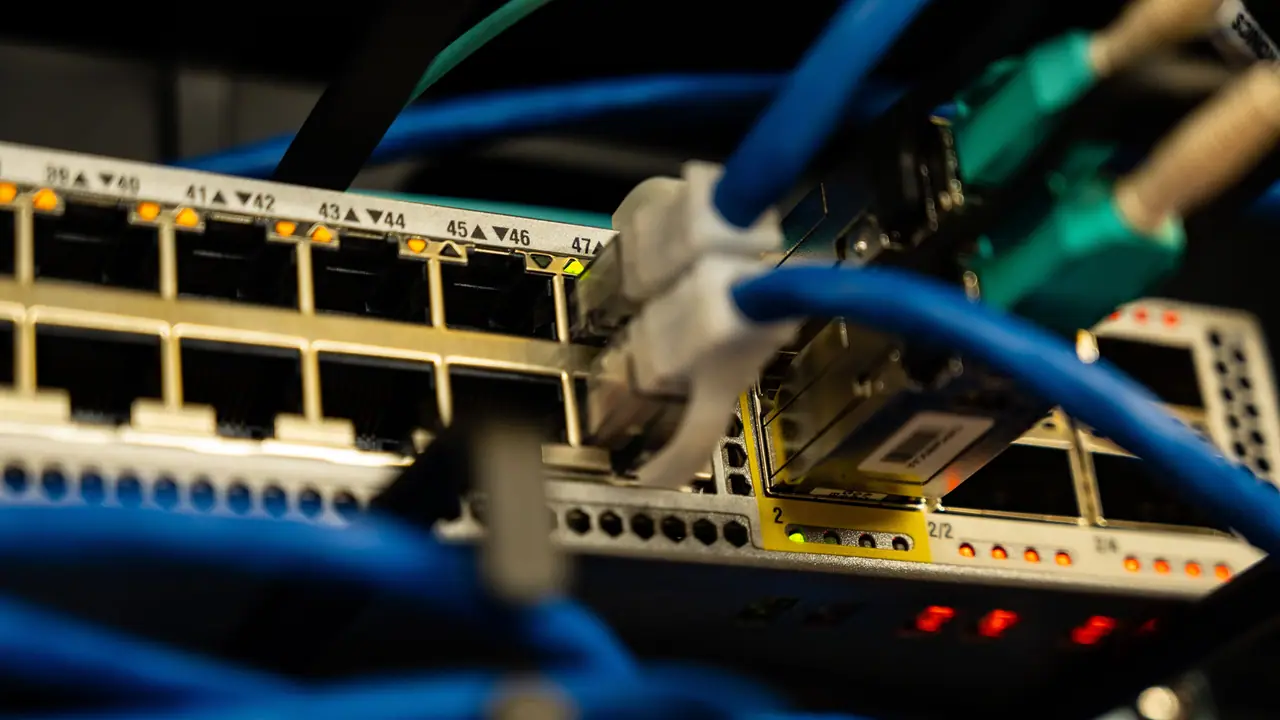
Wi-Fi is convenient, but it is the single most common cause of IPTV buffering. Wi-Fi signals are affected by distance, walls, interference from neighboring networks, and signal congestion in apartment buildings. Even with a strong signal, Wi-Fi introduces latency spikes and packet loss that translate directly into buffering.
An Ethernet connection is always more stable than Wi-Fi. It provides consistent speeds, lower latency, and zero packet loss from wireless interference. If your streaming device is near your router, use a Cat5e or Cat6 Ethernet cable to connect them directly. The improvement in streaming stability is immediate and dramatic.
If your device does not have an Ethernet port, you can use a USB-to-Ethernet adapter. For Firestick, Amazon sells an official Ethernet adapter that connects to the power cable. For Smart TVs, the Ethernet port is usually built into the back of the TV. For Android TV boxes, Ethernet is almost always included.
If running Ethernet is not practical in your home, use a 5 GHz Wi-Fi connection instead of 2.4 GHz. The 5 GHz band offers faster speeds and less interference. However, 5 GHz has shorter range and does not penetrate walls as well as 2.4 GHz, so your device should be in the same room as the router for the best results.
- Ethernet provides lower latency and zero packet loss
- Use Cat5e or Cat6 cable for best performance
- Firestick users: use the official Amazon Ethernet adapter
- 5 GHz Wi-Fi is better than 2.4 GHz for streaming
- Move your router closer to the streaming device if possible
Fix 3: Change your DNS settings for faster streaming
Your internet service provider assigns a default DNS server when you connect to the internet. These ISP DNS servers are often slow and can throttle or filter streaming traffic. Switching to a public DNS provider like Cloudflare (1.1.1.1), Google (8.8.8.8), or OpenDNS (208.67.222.222) can improve connection speeds and bypass ISP-level throttling.
To change DNS on your Firestick, go to Settings > Network > Select your Wi-Fi network > Advanced Settings > IP Settings > Static. Enter your preferred DNS addresses. For Cloudflare, use Primary DNS 1.1.1.1 and Secondary DNS 1.0.0.1. For Google, use 8.8.8.8 and 8.8.4.4.
If you change DNS at the router level instead of the device level, every device on your network benefits. Log into your router's admin panel, find the DNS settings (usually under Internet or WAN settings), and enter the same addresses. This is the recommended approach because it covers all streaming devices at once.
After changing DNS, restart both your router and streaming device, then test the IPTV stream. Many users report a significant reduction in buffering after switching to Cloudflare DNS because it reduces the time your device spends resolving server addresses. For the official configuration guide, visit Cloudflare DNS setup.
Fix 4: Configure your IPTV player buffer size
The buffer size in your IPTV player determines how much video data is pre-loaded before playback starts and how much is held in reserve during playback. A larger buffer can absorb brief network slowdowns without interrupting the stream, but it also increases the initial loading time when you change channels.
In IPTV Smarters Pro, go to Settings > Player Settings > Buffer Size and set it to 5000 KB or higher. In TiviMate, go to Settings > Playback > Buffer Size and select Large or Very Large. In OTT Navigator, go to Settings > Player > Buffer and set it to 5-10 seconds. The optimal setting depends on your network stability, but 5000 KB is a good starting point for most users.
If you have a very stable connection with low latency, a smaller buffer around 2000 KB will give you faster channel switching. If your connection is prone to brief drops, increase the buffer to 10000 KB. The right balance depends on whether you prioritize fast channel zapping or uninterrupted playback.
After changing the buffer size, test the stream for at least five minutes on a live channel, especially on sports or news channels where buffering would be most noticeable. Adjust the buffer up or down based on your experience.
Ready to start streaming?
Fix 5: Enable hardware acceleration in your IPTV player
Hardware acceleration uses your device's GPU to decode video instead of relying on the CPU. This dramatically improves playback performance, especially for HD and 4K streams. Without hardware acceleration, your device's CPU must handle both video decoding and running the app, which leads to stuttering, frame drops, and buffering on high-bitrate streams.
In IPTV Smarters Pro, go to Settings > Player Settings > Decoder and select Hardware (HW) or Hardware Plus (HW+). In TiviMate, go to Settings > Playback > Decoder and select Hardware. In OTT Navigator, go to Settings > Player > Decoder and select Hardware.
If you experience visual artifacts, green screen, or audio sync issues with hardware decoding, try HW+ mode if available. HW+ is an enhanced hardware decoder that handles a wider range of codecs and resolutions. If both HW and HW+ cause issues, fall back to Software decoding and reduce the stream quality instead.
Note that not all devices support hardware decoding equally. Newer Firestick models (4K Max, Fire TV Cube 3rd Gen) handle hardware decoding flawlessly. Older Firestick models (2nd Gen, Lite) may struggle with certain codecs. If your device is older, consider upgrading or sticking to Software mode with a lower buffer.
Fix 6: Use a VPN to stop ISP throttling

Many internet service providers throttle streaming traffic during peak hours. They identify IPTV traffic by examining the data packets and deliberately slow it down to reduce network congestion. This is one of the most common causes of evening buffering. A VPN encrypts your entire internet traffic, making it impossible for your ISP to see what kind of data you are sending.
When choosing a VPN for IPTV, speed is the most important factor. A slow VPN makes buffering worse, not better. For IPTV streaming, look for a VPN with WireGuard protocol support (faster than OpenVPN), a large server network, and servers optimized for streaming. NordVPN, ExpressVPN, and Surfshark are the most reliable options for IPTV in 2026.
To use a VPN with IPTV, install the VPN app on your streaming device, connect to a server in a region close to your physical location (to minimize latency), and then open your IPTV player. The VPN will encrypt your traffic and your ISP will no longer be able to throttle it.
For Firestick users, most major VPNs have native Fire OS apps available on the Amazon App Store. Some VPNs also offer router-level installation, which protects all devices on your network without needing to install the VPN app on each device individually. Router-level VPN is the best option if you have multiple streaming devices.
For a detailed comparison of the best VPNs for IPTV, refer to the IPTV Technology category for more optimization guides.
Fix 7: Clear app cache and free device storage
Over time, IPTV apps accumulate cached data: EPG information, channel art, thumbnails, and temporary stream data. A bloated cache slows down the app, increases loading times, and can cause buffering and freezing. Clearing the cache is a simple fix that solves many intermittent streaming problems.
On Firestick, go to Settings > Applications > Manage Installed Applications > select your IPTV app > Clear Cache. Do not select Clear Data, as that will remove your login credentials and settings. On Android TV, go to Settings > Apps > see all apps > select your IPTV app > Storage > Clear Cache. On Smart TVs, the option is usually under Settings > Apps > select app > Clear Cache.
While clearing cache, also check your available storage. Firestick devices are notorious for running out of storage space, which directly impacts streaming performance. Go to Settings > My Fire TV > About > Storage. If available space is under 500 MB, uninstall apps you do not use. Remove games, unused streaming apps, and any APK files left in the Downloader app's storage.
Make clearing the IPTV app cache a weekly habit. Set a reminder on your phone if needed. It takes 30 seconds and prevents one of the most common causes of gradual streaming degradation.
Ready to start streaming?
Fix 8: Optimize your router settings with QoS
Quality of Service (QoS) is a router feature that prioritizes certain types of traffic over others. By enabling QoS and prioritizing your IPTV device or streaming traffic, you ensure that your video data gets through first, even when other devices on your network are downloading files, streaming music, or browsing the web.
To enable QoS, log into your router's admin panel (typically at 192.168.0.1 or 192.168.1.1). Look for QoS, Traffic Management, or Bandwidth Control in the settings. The exact location varies by router brand. Enable QoS and set your streaming device as the highest priority, or prioritize traffic by application type (streaming video).
If your router does not support QoS, consider upgrading to a modern router. Routers that support Wi-Fi 6 (802.11ax) offer better traffic management features and handle multiple simultaneous streams more effectively than older Wi-Fi 5 routers. A good router is a worthwhile investment if IPTV is a primary use of your home internet connection.
- QoS prioritizes IPTV traffic over other network activity
- Access router settings at 192.168.0.1 or 192.168.1.1
- Set your streaming device as highest priority
- Upgrade to a Wi-Fi 6 router for better traffic management
- Use a dedicated router for streaming if possible
Server-side buffering: when the fix is not on your end
If you have tried all the local fixes and buffering persists on every channel, the problem is likely on the provider's side. IPTV providers use Content Delivery Networks (CDNs) to distribute streams from servers around the world. If your provider's CDN does not have a server close to your location, your data has to travel further, increasing latency and the risk of buffering.
You can test for server-side buffering by using a VPN and connecting to a server in a different country. If the stream improves significantly, your provider's CDN has better routing from that location. This is common for providers whose servers are concentrated in Europe or North America while you are located elsewhere.
Some providers offer multiple server URLs or DNS addresses. If your provider has more than one server option, try switching to a different one. The difference in performance between servers can be substantial. Ask your provider's support team which server is closest to your location. For choosing a provider with reliable infrastructure, the provider checklist explains what to look for.
If server-side buffering is confirmed and there is no improvement with any server option, it may be time to consider a different provider. A reliable IPTV service should have a robust CDN infrastructure with servers in multiple regions. When comparing providers, ask about their server locations and CDN setup.
When to contact IPTV support
Support can help with issues that are beyond your control: server outages, account problems, and stream-specific errors. But support is most effective when you have already done the basic troubleshooting first. If you contact support without testing your internet speed, restarting your router, or clearing the cache, they will ask you to do those things before proceeding anyway.
Before contacting support, collect the following information: device model and OS version, IPTV app name and version, your internet speed test result, whether the issue affects live TV, VOD, or both, whether it affects all channels or a specific category, the exact time the issue occurs, and whether a VPN changes the behavior. For support contact guidance, see the support and troubleshooting guide.
For qwevo tv subscribers, support is available via WhatsApp. Include the details listed above in your first message to get the fastest resolution. If you need help with a specific channel or event, mention the channel name, category, and the exact time you tested it.
Ready to start streaming?
Prevention tips for smooth streaming
The best way to deal with buffering is to prevent it before it starts. These habits take minimal effort but keep your IPTV experience consistently smooth. Adopt them as part of your regular routine and you will rarely need to troubleshoot.
- Restart your router once a week to clear its memory
- Clear your IPTV app cache every week
- Keep your Firestick or device firmware updated
- Use a wired Ethernet connection for critical viewing
- Run a speed test before live sports or major events
- Close background apps before opening your IPTV player
- Use a dedicated streaming device rather than a Smart TV app
- Invest in a quality router with QoS and Wi-Fi 6 support
- Keep your IPTV player updated to the latest version
- Test your setup before important viewing sessions